Weshoot.com

The Official We Shoot Blog

  • Home
  • About
  • To Comment

Getting the mountain to come out!

Author: weshoot

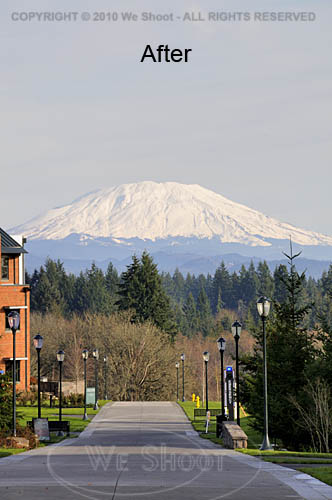
I work and live in the great Pacific Northwest.  The area from Seattle through Tacoma and Olympia, Washington to Portland, Oregon is generally where you will find me.  The features that stand out around here are views with a mountain in them.  Whether it is Mt. Rainier, Mt. Saint Helens, Mt. Adams, Mt. Baker, or another of those monoliths that dominate the scenery, sometimes they are far enough away to get aerial haze clouding the images.  Consequently, if the image is light enough for great detail in the foreground of the image, the mountain will appear so light as to almost disappear from the image.  Here are some ways to fix this: all involve the use of editing software of some kind, but the results can be worth it.  See the two samples below.
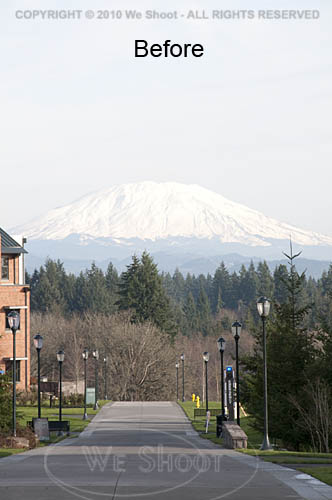
    

There are many ways to get this to come out in one image.  If you are using raw software, you can make two different tiff images from the same raw file.  Manipulate one tiff so that the foreground comes out with the proper density and color, and edit the other version to be much darker, with more contrast and saturation.  Name them differently so you can bring them both up in your editing software.  Copy the lighter image to the darker one as a layer.  You can use the following editing program operations to edit the image.

I prefer the following method over the one outlined above, mainly because it allows retouching of the image as one image, rather than dealing with layering two different unretouched images.  First, open your image in your editing program – the one I currently use is Adobe Photoshop CS4.  Next, retouch and enhance the image as necessary.  Next, make a duplicate layer.  Save the newly-layered file as a separate psd file.  Click the eyeball symbol next to the upper layer to make it invisible, and move to the lower layer to work on it.  There are several ways to darken the bottom layer.  I prefer using adjustment layers like curves, levels, saturation, etc., to get this done.  Once the mountain looks sufficiently dense enough to appear stronger in the image, I click on the eyeball spot again to again make the upper layer visible.  I then create a mask for the upper image.  I sometimes take the pen tool and trace out the mountain to select it by itself, making a path that will become a selection, but in any event, I use a black brush to paint out part of the upper layer and allow the lower layer to show through to some degree, or even 100%.  If I think it needs more tweaking, I sometimes make a “soft light” layer above all the rest of the layers and darken appropriate areas.  Once I am satisfied, I flatten the layers and resave it in a “retouched” folder with the same number.  As you can see by the images above, it makes the mountain stand out, and it looks better than what the camera recorded to begin with.

– Gary Silverstein
Tags: enhance, enhancement, haze, mountain, pacific northwest, retouch, view, Washington
June 17th, 2010  |  Posted in Tips  |  Comments Off on Getting the mountain to come out!

Are your images noisy?

Author: weshoot

Digital images have a problem not seen in film.  Digital images can have “noise.”  For a definition of noise, I will refer you to Wikipedia at: http://en.wikipedia.org/wiki/Image_noise .  Someone on the ‘net said that noise in digital images was like grain in film.   I don’t think so.  While grain in film was largely ISO or ASA dependent – lower grain at numerically lower ISO (ASA) numbers – noise seems to come from factors such as underexposure, quality of the sensor, how many megapixels are jammed onto the sensor, etc.  Grain happened all over the image, while noise seems to come up in areas of a digital image that are underexposed.  In my experience noise can take two forms: color and luminance.  Luminance is a somewhat grainy appearance and usually makes shadows appear to have dark mottled areas.  Color noise is grainy, mottled, and sometimes adds colors like yellow and green to the mix.  Even relatively good cameras at low ISO numbers can have some noise in the shadow areas, especially when trying to lighten them up.  Some of the ways to deal with noise are: get a low-noise camera; overexpose a little; shoot raw images, which have more latitude for correction than jpegs; use noiseware software; darken shadow areas so the noise is blended; blur the shadow noise so it is not mottled; color or clone in noisy areas.

Noiseware, such as that made by Imagenomic, or Noise Ninja, etc., use algorithms to alleviate noise.  But be warned, the heavier you use such software, the softer the image will look in the areas covered by the software.  In other words, if you use the software on the entire image, it may appear soft or blurred.  One can use editing software to section off areas of an image and only use the software on those areas.  I do it a different way.

I open the image in Photoshop and create a duplicate layer of the image.  I go to the bottom layer and use my noiseware plugin filter to smooth the noise on the entire layer.  I move up to the upper layer, and create a mask on that layer.  While in that mask, I simply use black to paint out the areas in the upper layer and let the lower noisewared layer show through.  This gets rid of the noise only where I want, and does not blur the rest of the image, which still is absolutely sharp.

Some clients do not mind noise, while others, notably the stock agencies, abhor noise and will fail an image for noise, or Soft Or Lacking Definition (SOLD) images as quick as you would blink.  Try to eliminate noise in your photos for a better look, and better images.

– Gary Silverstein

Tags: artifact, correct, correction, digital noise, layer, mask, masking, noise, Photoshop
June 16th, 2010  |  Posted in Tips  |  1 Comment »

We Shoot Blog Kickoff – about black and white photographs

Author: weshoot

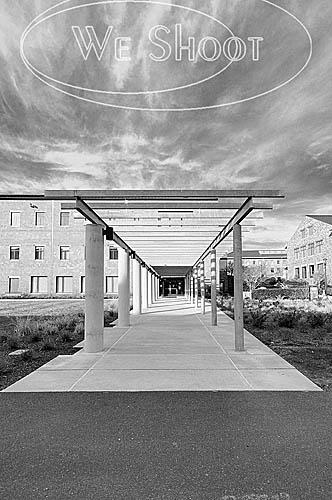
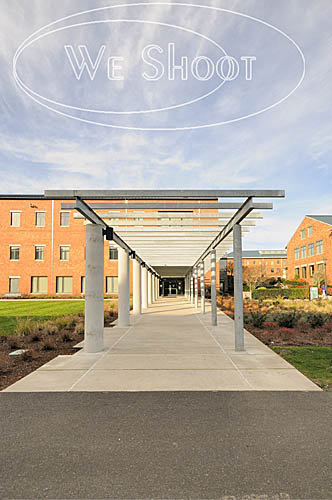
Color image    Black and white image

Today, very few people are using film to create their images, and commercial photographers were early adopters of digital photographic equipment.  I was one of the early ones.  So, I was faced with the question: How does one make a black and white image with a digital camera?  I can’t speak for all cameras, of course, as there are so many different ones.  Some cameras have a facility built in to take a b/w photograph.  We have an older point and shoot camera that doesn’t seem to have that capability.  It also shoots only jpegs.

Our DSLRs, or digital single lens reflex cameras, on the other hand, are able to shoot in a b/w mode.  Here are some caveats.  When shooting a jpeg image in b/w mode, the effect is permanent – I am unable to find a way to reverse the format once the image has been taken and it is black and white, should I desire the image in color.  We have Nikon DSLRs (this is our choice, and not an indictment of other brands), and they are also capable of shooting a “Raw Image.”  Raw is usually a non-destructive format, meaning that changes to the image can be deleted and the image returned to the state in which it was taken.  Raw is usually the choice of professionals, as there is more digital information left intact in the image, like color and density, than there is in a tiff or jpeg.  Raw images can be manipulated by computer software a lot more than the aforementioned tiff or jpeg, and a raw image can be converted to other formats after manipulation.  Here’s where there is an advantage to shooting raw:  even if the camera is in b/w mode, I can again get a color image from the raw format.  It seems the b/w mode is a filter in the camera, and if using the Nikon Capture NX2 software, it shows the image as a black and white, but the filter can be removed by the software.  Other software, like Photoshop CS4 doesn’t even see the black and white filter, and shows the raw image as one with the original color!  If taking a jpeg image with the same camera, the b/w effect is permanent!

We have a client, an advertising firm,  who wants all the image samples we show them and the images they order in black and white, gray-scale.  This is a lot of work, but it has its rewards.  We have gotten great expertise in doing this, and we have a lot of images that can later be used in color or black and white for other things, as well as stock.  These images are non-proprietary, meaning they aren’t of the client’s product, property, or personnel.  They are images from the world around us, and are used in an editorial way

So, what is our workflow for this client?  First, we shoot the images with a high-resolution digital camera, in color.  Then we process them in the Nikon raw editor, Capture NX2.  We tweak the color and density in this program and convert them to color tiffs.  Next, we open the tiffs in Photoshop CS4 where we further process them, removing flaws, lightening and darkening specific areas on the image.  Now, there are several ways to make a black and white image from color.  We prefer using the black and white adjustment layers in CS4.  It gives us a lot of ways to manipulate the image for contrast, density, and even filters the image like it was shot with a filter on the camera lens.  Want a dark or black sky with white clouds?  There are filters for that! (There’s an app for that!:-) ).  After getting what I want in the look of the image, I convert the image to a gray-scale tiff.  After I am done with the multitude of images I have created in this manner, I use Photoshop to batch the images to low-resolution jpegs, and put our copyright and/or logo on the sample images. This keeps unlicensed use from happening.

Next, I make a zip file out of all the sample images, and send them on to our client over the Internet, so they can choose which of the images they would like for their purposes.  Once they let me know what they want, I can either put them in a zip file and send it to them over the ‘net, or burn them to a DVD and send them via carrier.

That is just how we deal with one client.  Black and white photographs are abstract, different, and fun.  They are also a lot of satisfying work.

– Gary Silverstein

Tags: b/w, black and white, commercial, photographer, photography, professional
June 14th, 2010  |  Posted in Tips  |  Comments Off on We Shoot Blog Kickoff – about black and white photographs

Next >>

  • Categories

    • How To (21)
    • Information (548)
    • Learning (30)
    • Lighting (179)
    • Marketing (291)
    • Photographs, Images (545)
    • Tips (38)
    • Uncategorized (2)
    • video (13)
  • Archives

    • September 2025
    • June 2025
    • May 2025
    • April 2025
    • January 2025
    • December 2024
    • November 2024
    • September 2024
    • August 2024
    • July 2024
    • June 2024
    • May 2024
    • April 2024
    • March 2024
    • February 2024
    • December 2023
    • November 2023
    • October 2023
    • September 2023
    • August 2023
    • July 2023
    • May 2023
    • February 2023
    • January 2023
    • October 2022
    • September 2022
    • August 2022
    • July 2022
    • March 2022
    • February 2022
    • January 2022
    • December 2021
    • July 2021
    • June 2021
    • May 2021
    • April 2021
    • March 2021
    • February 2021
    • January 2021
    • December 2020
    • November 2020
    • October 2020
    • September 2020
    • August 2020
    • July 2020
    • June 2020
    • May 2020
    • April 2020
    • March 2020
    • February 2020
    • January 2020
    • December 2019
    • November 2019
    • October 2019
    • September 2019
    • August 2019
    • July 2019
    • June 2019
    • May 2019
    • April 2019
    • March 2019
    • February 2019
    • January 2019
    • December 2018
    • November 2018
    • October 2018
    • September 2018
    • August 2018
    • July 2018
    • June 2018
    • May 2018
    • April 2018
    • March 2018
    • February 2018
    • January 2018
    • December 2017
    • November 2017
    • October 2017
    • September 2017
    • August 2017
    • July 2017
    • June 2017
    • May 2017
    • April 2017
    • March 2017
    • February 2017
    • January 2017
    • December 2016
    • November 2016
    • October 2016
    • September 2016
    • August 2016
    • July 2016
    • June 2016
    • May 2016
    • April 2016
    • March 2016
    • February 2016
    • January 2016
    • December 2015
    • November 2015
    • October 2015
    • September 2015
    • August 2015
    • July 2015
    • June 2015
    • May 2015
    • July 2014
    • June 2014
    • May 2014
    • September 2013
    • June 2013
    • March 2013
    • February 2013
    • January 2013
    • December 2012
    • October 2012
    • July 2012
    • June 2012
    • May 2012
    • March 2012
    • February 2012
    • December 2011
    • September 2011
    • August 2011
    • July 2011
    • March 2011
    • December 2010
    • October 2010
    • September 2010
    • July 2010
    • June 2010
  • Meta

    • Log in
    • Entries RSS
    • Comments RSS
    • WordPress.org

Copyright © 2026 - weshoot.com | Entries (RSS) | Comments (RSS)

WordPress theme designed by web design