Weshoot.com

The Official We Shoot Blog

  • Home
  • About
  • To Comment

Archive for the ‘Tips’ Category

Your Business Video

Tuesday, June 2nd, 2015

If your website is 50% more likely to appear on the first page of search engine results if it includes video, would you say, “let’s buy a video camera?” or “let’s call a professional videographer?”  Since utilizing video for your website appears to be a sound business investment, either answer is good.  But, which one is better?

That depends upon your day-to-day priorities.  If you choose the former – buying a video camera (or using one you already have) – can you open up time in your day to create the layout, storyboard the shoot, set up lighting and camera equipment, do the shoot, conduct the interviews, edit the video (including researching music, creating graphics, transitions), and place the video on your website, YouTube, and other online sites?  If so, doing it yourself is the way to go.

So, before you do all of the above – and you definitely have the time – be sure you are confident the video will be just what you want from this personal endeavor.  Study the process fully, create the exact story you want to tell, and pick up that camera and shoot!  Or should I say, “experiment.”

Otherwise, consider the latter – calling a professional videographer.  Placing the process into the hands of a professional may well be the very best use of your time – and your budget.  Personal experimentation may be just that, an experiment.

###

Dione Benson

6.1.2015
Tags: advice, amateur, camcorder, edit, editing, editor, equipment, experiment, lighting, professional, storyboard, video, video camera, video production, videographer
Posted in Information, Tips | Comments Off on Your Business Video

Everybody’s a food photographer . . . NOT!

Thursday, July 10th, 2014

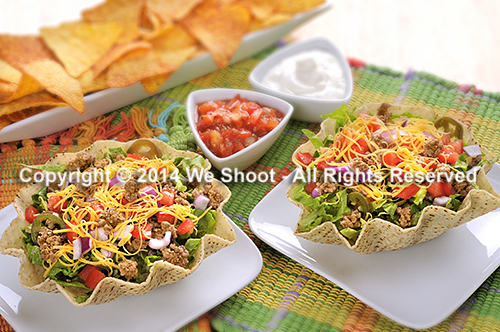
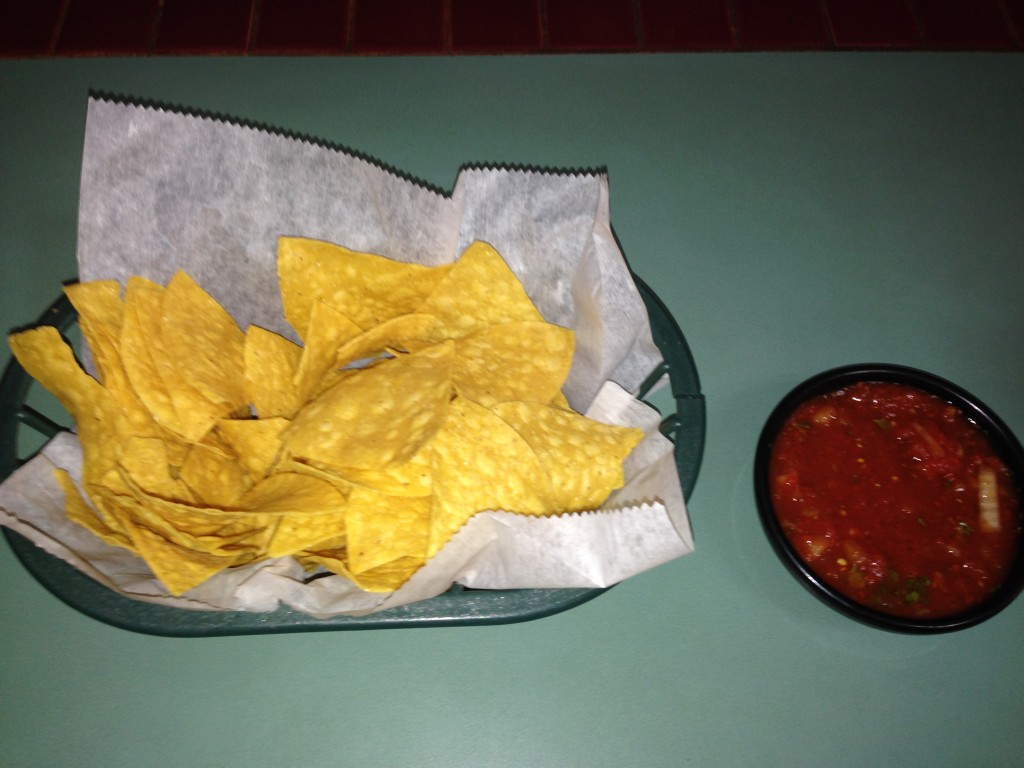
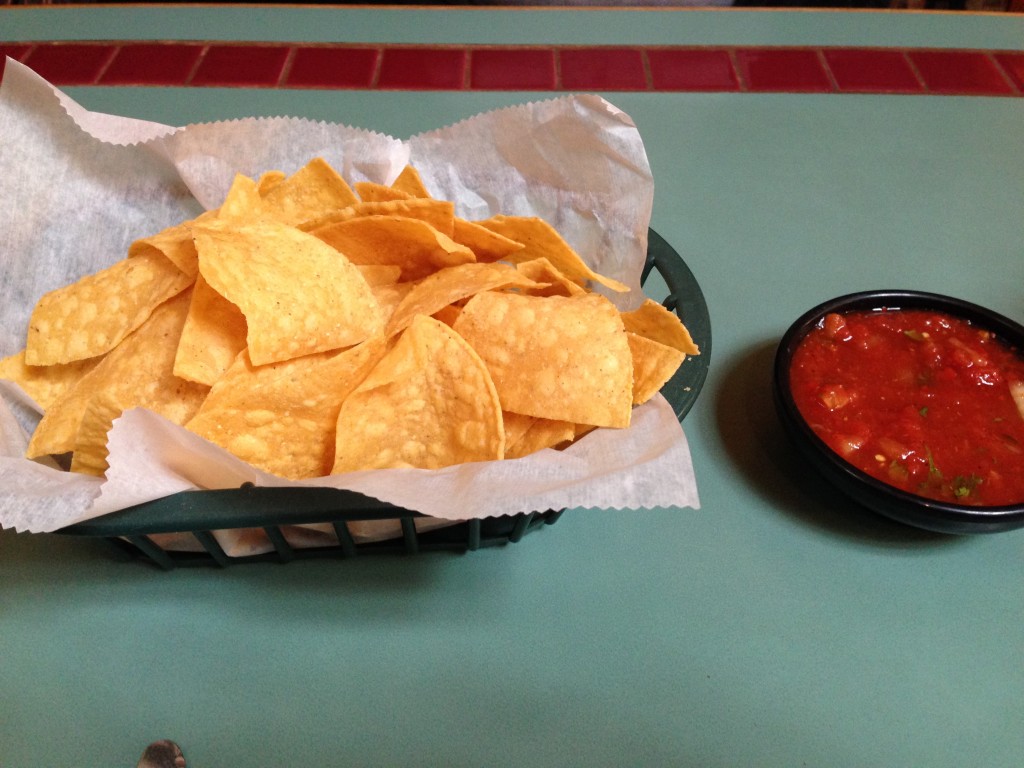
Like a lot of other people, I go to Facebook, Flickr, Twitter, and other social sites, and I see lots of images of food.  Contacts and colleagues, as well as anonymous strangers, have decided to show what they are about to eat, or have partially eaten.  The explosion of cell phone cameras and other low-cost digital cameras has allowed many people to think of themselves as “Food Photographers.” Anyone today with a heartbeat can take a picture.  I look at some of the food photography online, and there are comments from others on this, like:  “That looks so yummy, I wish I could have some!”  Or, “That looks delicious!”  I look at the images and it is all I can do to keep my last meal down.  What I usually see is not well composed, never styled, improperly lit, and the colors are sickly.  This is akin to those blurry, out of focus  images some people take of their kids and post on Facebook, to the delight of their friends and grandparents who say “Great shot!” The one thing they all have in common was that all the images were created for free, once you factor out the cost of the phone or camera, memory cards, readers, computers, and editing software. As I create food photography professionally, I have decided to see if I could take decent images of food with my cell phone and run it through Photoshop to get decent looking food shots. Now, real commercial food photography takes planning, a good food stylist, lots of lighting and equipment, and photographic experience.  It also takes a tremendous amount of patience.  I have dealt with clients, corporate chefs, tight spaces, and less than ideal shooting conditions.  Sometimes the food looks great but is actually inedible because things are done to it for the purpose of great photography. I went out to a favorite Mexican restaurant for dinner the other night and, as usual, I brought along my iPhone, which actually has a decent camera built-in (for what it is).  It takes 8 megapixel images in .jpg form.  It performs reasonably well in relatively low lighting conditions.  It has a strobe.  But, first, it doesn’t shoot in RAW format. This is important for making better final images.  More megapixels means more information and higher enlargement quality.  Not all megapixels are equal.  There are many cell phones that have larger pixel counts than the iPhone, but the picture quality isn’t as high, as evidenced by the fact that several stock agencies will accept still images and video from iPhones, but not other cell phones.  Image noise becomes a factor when jamming high pixel counts on small sensors. For this reason, a cell phone isn’t what a pro would use.  If you are going to shoot food, in my opinion, a 24mm X 16mm sensor in a DSLR at 10 megapixels that shoots in RAW format would be the minimum to use. So, despite my opinion, I decided to experiment as a pro since I have indeed been paid to photograph food by people in the food biz.  I decided to work with the chips and salsa. The first obstacle is lighting.  In this example, we are away from the outside windows and close to an inside wall. I am shooting hand-held.  So it has to be either the ambient room lighting or the camera flash.  Trying the flash, I get the following image: IMG_0388 Although it looks sharp as a small image, there is unacceptable camera movement evident in the full-sized version.  Harsh shadow at the top of the paper.  Loss of light away from the center, and all the color is off.  No styling is evident.  This was just the way the food was delivered.  Yet I see images on FB worse than this with someone saying “yummy” in the comments. I then try the somewhat same shot using room lighting, without the strobe.  See the sample image below: IMG_0384   While in-focus and more appealing color is evident and lighting is more even, the shadows are still way too heavy, caused by non-diffused room lighting.  The position of the camera is dictated by my seating.  I can’t get far enough back to get the chips and salsa in the frame.  The tip of my silverware can be seen at the bottom of the image.  Remember that I am shooting as most people do who post images online, not as a pro.  There will be no styling. Next, I take the image and put it through a little Photoshop massage.  It comes out looking like this: IMG_0384 ret With shadows lightened, color enhanced, top of the image straightened, and the silverware tip removed, it looks better – but still nowhere near professional quality.  Maybe worthy of FB, but not for marketing. I will show you a styled, professional image we did a while back of two taco salads, chips, and the rest of the fixings: taco salads As you can see, the color is quite appealing, the image is light and colorful, and the food is crisp and fresh-looking. Shadows are attractive and unobtrusive. The image has been styled by a professional stylist, and a lot of diffused strobe light has been used.  Lighting is off-camera to give highlights where needed and provide depth.  This is professional food photography – the kind supplied by We Shoot.
– Gary Silverstein

Tags: commercial, commercial photographer, commercial photography, food, food photography, Photoshop, retouch, shoot, shooting, weshoot.com
Posted in How To, Information, Learning, Tips | Comments Off on Everybody’s a food photographer . . . NOT!

The Memory Card Reader From Hell!

Thursday, May 29th, 2014

Professional photographers and amateurs alike have many things in common in this digital age:  our cameras put the images we take on digital media, such as Compact Flash cards, SD cards, or similar devices.  Some of the different methods for extracting the information from these cards are to run a cable (usually USB) to the camera from the computer and we instruct the computer to copy, transfer, or import the images to the computer’s hard drive(s), or we take the digital media card out of the camera and place it in a reader that serves the same function.  Some of us have built-in slots in our desktop computers that will accommodate various kinds of cards.  My last two computers have had the slots built in.

I’m a professional photographer and videographer.  For many shoots, I go on location and have several Compact Flash cards that fit in my still cameras, and the images I shoot are stored on the CF cards awaiting transfer to my computer’s multiple hard drives.  Since I usually can’t reshoot the images, and there is much more security in the redundancy of having the files on different drives, I store my images on several external drives simultaneously.  Hard drives do fail.  There is no excuse for losing a client’s images.

The critical point, however, is that much can happen to the information on the cards during the transfer process.  Pulling a card out of a camera that is turned on can corrupt the card, as can pulling a card out of a reader during a copy phase.  So, I breathe easier once the images have been copied or imported to my first hard drive without a hitch.  Until I have the images on more than one hard drive, however, I keep the images on the card, as well, for backup in case something bad happens.

I recently got a wakeup call, and it was just by chance.  I had been using the CF card slot in my PC to copy files from the card to the computer.  I didn’t have a job for a little while and I had left the images from the last shoot on the card in the camera after first copying them to several drives on my computer.  I put the card back in my camera after copying it.  I usually copy to my main drive first, add keywords, my copyright, etc. to the meta data, and then copy all that to a couple more external drives for security.

About a week after I had copied the images on the card I had put back into the camera, I went to reset the camera’s settings for the most likely settings for my next shoot.  It showed I still had images on the card, so I hit the view button to see which images were on the card before deleting them, AND, HORRORS,  THEY LOOKED BADLY PIXELATED!  I looked at several of the images in the camera and most had this problem.  I hit the magnify button, and they looked sharp again, but when going back to the “fit on screen” image they again looked pixelated.  All I had done was to copy them to the hard drive on my computer.  The images that had been copied to the hard drive were in no way affected, but the card seemed to be corrupted.  That never happened before.

Luckily, I had already uploaded the finished job to the client the day before, so I knew that the images in the computer were not corrupted.

As a pro, I can’t leave anything to chance, so I had to find out whether the card was bad, the camera had a problem, or what had screwed up the images while the card was in the computer.

My first test was to shoot test images to see what was happening.  Once shot, I looked at each at the back of the camera.  They looked normal.  I turned off the camera, popped the card, and put it in the built-in PC reader.  I copied the files to a folder on my desktop, and made sure it was finished copying.  I removed the card from the PC.  I made a second folder on my desktop.  I then used Photoshop to view the images in the first folder on my desktop.  They looked OK.  I put the card back in the camera and turned the viewer on, and they were corrupted!  I took the card out of the camera again, and put it back in the PC and copied the same files to the second folder on my desktop.  I clicked on the first image in Photoshop and a dialog box popped up saying that Photoshop could not read the image format.  The card was corrupted.  Period.

I had an old external USB 2.0 card reader I used to use before having built-in slots, so I dusted it off and plugged it into an open USB slot on my computer.  I put the card in the camera again and formatted the card.  Again I took some test images.  I took the card out of the camera and put it in the external reader.  It took longer than the built-in reader, but there weren’t that many images.  They copied perfectly.  I took the card from the reader and put it back in the camera.  I turned on the viewer, and the pictures looked normal, not corrupted.  I shut off the camera and again removed the card.  I again copied the files to another folder on my desktop – they could be opened in Photoshop and looked normal.

I determined that the built-in reader in the PC was corrupting the images while copying.  I don’t know why: was it software, or hardware?  I determined that the best way around the problem was to not use the built-in slots again on this computer, but to bypass them.  I had lost faith in them.  However, the USB 2.0 external reader is incredibly slow.  I also use my readers for HD video on SDHC cards, and it takes forever to import video files.  So, I decided to buy a new USB 3.0 external reader.  I found one on B&H’s website for $14.95 (with no shipping) at http://bhpho.to/SVr845 .  I ordered it and tried it out with all my different media from different cameras.  It seems to work well, and it is blazing fast compared with USB 2.0.

The moral of the story is:  Don’t be complacent about your digital photography equipment.  Don’t assume all is well without checking it out occasionally.  I could have gotten a bad surprise if I hadn’t looked at my camera, and taken action.  Being a pro, you’ve got to be on your toes!

– Gary Silverstein

Tags: 2.0, 3.0, camera, card, CF, CF card, commercial photography, Compact Flash, corrupt, corrupting, corruption, drive, file, files, hard drive, image, memory card, PC, pixel, pixelated, professional, reader, SD, SDHC, still, stills, USB, video
Posted in Information, Tips | Comments Off on The Memory Card Reader From Hell!

Protecting Your iPad, Part 2 . . .

Friday, March 15th, 2013

It has come to my attention that some out there may not be adept at using Photoshop to make a lockout screen image for protecting their iPad in the event of theft or loss.  If you read over my last post, at http://weshoot.com/wordpress/?p=591, it relies on using a photo editing program (in this case, Photoshop) to make an attractive lockout screen wallpaper to help get an iPad recovered to its rightful owner.  Well, if you don’t have Photoshop or graphics capability, you can use the iPad itself to make an image that will help.

First, get a piece of paper and write something on it to help get the iPad back to you, like the image below:

Property of We Shoot

Now, get the iPad and capture an image of what was written on the paper using the Camera App.  This will automatically place the image in both the photostream and the camera roll.  Go into the Settings App.  Go to “Brightness and Wall Paper” and find the just-taken image for your lockout screen wallpaper.  Although it’s not as elegant-looking as the image in my previous post, it will be as effective in getting your iPad back, should it be stolen or lost.

– Gary Silverstein

We Shoot

Tags: computer, iPad, lock screen, lockout, loss, recover, screen, stolen, tablet, theft
Posted in How To, Learning, Tips | Comments Off on Protecting Your iPad, Part 2 . . .

Using Photoshop To Protect Your iPad!

Wednesday, February 20th, 2013

If you have a wifi only iPad you may think you are protected by the Apple “Find My iPad” utility, but you are not.  If you lose it, or it is stolen, how will it be recovered?  Remember, for the Find My iPad app to work, the iPad has to be signed into the Internet.  If you don’t set a password or passcode, it is possible for a thief to go into the settings and shut off Find My iPad.  If you do set a password or passcode, it is only possible for the iPad to go online if it is in a place where it has signed into the Internet before, without asking if it should.  Otherwise, it remains offline, and Find My iPad can’t find it.

This means that should the police or someone else recover your iPad, they can’t find out how to contact you to say they have it, because they, too, are locked out.

This is how Photoshop or another photo editing tool can help.  The iPad allows you to put an image on the lockout screen, other than the one it comes with.

Go into Photoshop and open a new document in the size of the resolution of your screen.  In the case of the iPad 4 it is 2048 pixels X 1536 pixels @ 264 pixels per inch.  Then add whatever colors you want or add an image as a layer.  Next, find the center and use the text tool using the center-justified tool, and put in some text that identifies this iPad as yours.  See the example below.

Property of We Shoot                       

Make something that works for you, and then flatten the image.  Save it as a jpeg.  I used a quality of 7. 

Upload it as an image through iCloud using your Photostream.  Go on your iPad and open Photostream.  Tap the image and when it gets smaller, tap “edit,” tap the image again so there is a checkmark on the thumbnail, tap “Save to Camera Roll.”  Go into the Camera Roll, tap “edit,” tap the thumbnail,  tap “share,” and then tap “use as wallpaper.”  Now choose “Set Lock Screen.”  Turn off your display.  Reopen.  Your new wallpaper should show the image you just put on your iPad.

Of course, you can do this with your 3G or 4G iPhones and iPads as well.

This way, if some thief steals your iPad and can’t break the passcode or password, anyone he or she shows it to knows it has been stolen.  If it is lost, someone who finds it will be able to get in touch with you, or if the police have it, they will be able to contact you.

While not perfect, it should help you hold onto your iPad or maybe get it back.

– Gary Silverstein

We Shoot

We Shoot is a commercial product, food, industrial, and architectural photography team based in the Seattle area.

Tags: apple, apple picking, image, iPad, iPhone, lock screen, lost, Photoshop, police, property, recover, recovery, stolen
Posted in How To, Tips | Comments Off on Using Photoshop To Protect Your iPad!

Bracketing with Studio Strobes . . .

Friday, February 15th, 2013

Product and other forms of commercial photography sometimes require the use of strobes.  Strobes usually provide daylight color balance which helps with architectural photography as it allows a burst of light to light up a room, and use a time exposure to get the (daylight) scene outside a window so it looks like we see it.  Otherwise, the sunlit exterior is blown out, or in some instances, it can look darker and drearier than the interior, if it is overcast outside.  In the case of product, studio strobes are the powerful cousins of your on-camera strobes, and offer many advantages over the smaller units.

First, studio strobes are usually way more powerful, as they use very large batteries, 110v inverters, or wall socket power.  Second, they are portable and don’t have to be mounted on the camera, and give a more pleasing look as they don’t “flat-light” the subject and can be made to mitigate heavy shadows.  They are designed to work with many different accessories from umbrellas to soft boxes.  They can use many different types of wireless triggers.  They can generate more than enough light to shoot at tight apertures, allowing for deep depth of field.  In product and architecture, I find that shooting with small apertures (f11 to f16) allows me to get everything sharp and in focus.  If it is sharp in my original image, I can always create a shallow depth of field look in photo-editing software.  However, the reverse is not true.  Really soft images cannot be brought back into sharp focus even with the best of software.

All of the studio strobes I have used work with totally manual settings.  I usually set my camera on a tripod at f11 to f16 at 1/100th of a second or slower.  The strobe light burst lasts for a very short time.  This eliminates most movement, but how do I bracket under those conditions, since I don’t want to change either the shutter speed or aperture once I start shooting?  The answer is in the manual controls of the studio strobes.  Once I get my best-looking exposure of all elements by shooting and rechecking the image, I plan on shooting a series of images bracketed on either side of that exposure by working the slides or dials on my equipment, usually in half-stop increments.  I may be using as many as 3 or 4 lights at different angles, and each will need to be adjusted individually for each exposure.  This gives me the same object at the same depth of field at the same shutter speed from a dark exposure to an overblown exposure.  Why would I want to do this?  I can then pick and choose the best exposed parts of the object or room and using an editing program, such as Adobe Photoshop, I assemble them to make a perfectly exposed object with detail where it needs to be without any noise.  I can also make an HDR image from all the exposures, if that gets me a better-looking image.

Being a commercial photographer means getting the best satisfactory image for your client.  A commercial photographer having the right equipment and expertise means leaving very little to chance.

– Gary Silverstein

We Shoot

We Shoot is a commercial product, food, industrial, and architectural photography team based in the Seattle area.

Tags: architectural, bracketing, commercial, edit, flash, flat-light, flat-lit, food, hdr, industrial, lighting, off-camera, on-camera, photography, Photoshop, product, shadow, software, strobes, studio strobes
Posted in How To, Learning, Tips | Comments Off on Bracketing with Studio Strobes . . .

Bracketing With Hot Lights And Available Light . . .

Wednesday, January 16th, 2013

In my last post, I discussed bracketing of exposures.  Today, let’s talk about bracketing with hot lights.  Hot lights are a continuous lighting source and should be regarded as available light, just sometimes very intense, and very bright.  A majority of hot lights are of incandescent color temperature, adding a warm or yellow tone to your image.  In most modern DSLRs, there is a setting for tungsten or incandescent light which compensates for the warm tint by adding a blue or cyan tint to the image.

Instead of using the incandescent mode in the camera for white balance, I prefer taking one exposure with a gray card in the image and setting the gray reading for all the images I take in that series with my editing software.  Outdoors, my cameras are very accurate, so the automatic white balance setting works just fine.  Indoors with a mix of lighting, a gray card or an Expodisk is the ticket.

Now, back to bracketing with available light and hot lights.  My cameras will do up to nine bracketed shots (different exposures of the same image) automatically.  Some cameras only allow three images for auto bracketing.  If you desire more exposures for either HDR (High Dynamic Range) images or for layering the images with these cameras, the way to facilitate that is to do it manually.  As in my last article, adjust the exposure by putting the camera in aperture-priority mode, setting one aperture and changing the shutter speed to bracket various exposures.  My choice is to use 2/3 of a stop difference for each of my brackets.  You may like 1/3 stop, 1/2 stop, 1 stop, or ? bracketing stops instead.  If doing this manually, try to get one optimum exposure, i.e. the one picked by the camera as the overall best exposure, and make the same number of exposures brighter and darker on either side of the optimum exposure.  Also, if doing it manually, you will have to put the camera on full manual for exposure, then set your aperture where you want and vary the time for the brackets.

The reason for bracketing is that the latitude for digital images is about 5 stops with detail and no digital “noise.”  When lightening darker areas in a digital image, one sometimes runs into noise, either color noise which looks likes flecks of red, green, and/or yellow in that area, or luma noise, which looks like flecks of black snow.  Noise is usually unacceptable in commercial work and for stock images.  The answer is to bracket and take images in which even shadow areas are light enough to have detail without the need to lighten them, and to blend them into the finished image, either with HDR or layering and masking in computer-editing software.  Conversely, blown-out areas of one image can be recovered from a darker bracketed image, and give detail to blown-out areas.

In summary, bracketing with available lighting or with hot lights is basically the same, and white balance should be checked and adjusted should the need arise.

-Gary Silverstein


Tags: bracket, bracketing, brackets, commercial photography, editing, exposure, exposures, hdr, hot lights, image, layer, layering, lights, photography, Photoshop, professional, software, We Shoot Photography, weshoot.com
Posted in How To, Learning, Tips | Comments Off on Bracketing With Hot Lights And Available Light . . .

Bracketing Different Exposures . . .

Saturday, December 15th, 2012

Let’s talk about the art of bracketing.  Bracketing is taking the same image at several  different exposures so you are sure to get the detail you desire in your images during digital post-production.  You may want to use high dynamic range (HDR) features in your computer software or camera to combine the exposures into one homogenous image, preserving both shadow and highlight detail from all the different exposures.  Or, if you prefer, you can use editing program masking techniques which allow the use of layers to achieve the same goal, but with more of a standard photographic look to your work.  HDR is sometimes difficult to work with to get an image that looks like what we have come to accept as “a photographic look,” and instead seems to have the feel of an illustration.

You can bracket manually, or some cameras will allow automatic bracketing in their menus.  My work cameras will allow 3, 5, 7, or 9 images to be taken automatically at a set rate of exposure variance, which I can specify (generally for me at 2/3 of a stop).  Using this method, I usually set the camera to alter the shutter speed from overexposed to underexposed.  I recommend shooting in aperture priority and altering the shutter speed as it keeps the aperture the same.  If you bracket by changing the aperture, sizes of things in the resulting images will be slightly larger or smaller in each exposure depending on the aperture dimension.  This will make it difficult to properly align each image.  I don’t recommend hand-holding the camera as it introduces camera shake and misalignment and, therefore, I usually use a tripod for bracketing.

In future posts, I will be touching more on bracketing and working with strobes, and hot lights, and how you can work on these in an editing program.

-Gary Silverstein

Tags: bracket, bracketing, camera, exposure, hdr, high dynamic range, layering, masking, multi-exposure, over expose, under expose
Posted in How To, Learning, Tips | Comments Off on Bracketing Different Exposures . . .

The Difference A Background Can Make . . .

Monday, October 1st, 2012

In the days of film, a professional commercial photographer had to be very careful of the backgrounds that would be used in his/her images.  Retouching was expensive.  Shooting an item for use against another background from the one it was taken with could be a labor-intensive multi-step process.  A spot on a high-key (pure white) background  could be touched out on the negative, and a nightmare undertaking on a transparency.   Today, of course, images are taken digitally and manipulated by editing programs, like Photoshop.  One of our most recent shoots involved large, heavy industrial products.   In film-days past, we would have probably used a seamless white background to shoot the product and spent a lot of time with product placement.  The items to be photographed were round, between two and three feet in diameter, and each weighed 500 or more pounds.  Five views were to be taken of each.  That means that either the item would have to be moved on the background, or very carefully lifted by a hoist onto the background.  We would have to be careful of marks left by the items where they rested on the paper, and some method of keeping such round items from rolling off the surface would have to be employed and kept out of sight.

So, pre-planning for the shoot is still important, even in this digital world.  We opted to not use any type of manufactured background per se, but to only use white reflectors in strategic places to reflect light or add a highlight where we desired.  Not using a background simplified the lighting somewhat in that a roll of paper or fabric didn’t block out the light from behind each item.  We were going to photograph the items in the factory environment with the idea that we would isolate the image in Photoshop, and put it on another, more desirable background.

Lighting was done with our powerful studio strobes, and the modeling lights on the strobes gave us an idea of how the lighting would look in the finished image.  We shot with soft-boxes to give a square look to our lighting in the highlights, as umbrellas just wouldn’t cut it here as these products were light-reflective.  We planned to keep the camera stationary, move the lights as necessary, and rotate the product for the five different angles the customer required.  Since the objects were circular,  and we wanted to keep all the images the same size, we had to plan how to keep that proportionality.  Think of a coin stood on edge.  The widest the image would have to be is a little more than the diameter when one of the faces of the coin is toward you.  When the edge of the coin is nearer to you, the size of the image could change, but we wanted to make them all the same size for the client’s ease of putting together several views of their product.  Also, we had to be far enough away to assure depth of field when we were shooting the views that showed part of the object furthest away.  Editing programs have great sharpening utilities, but a severely out-of-focus image cannot be brought back.  You can easily blur parts of a sharp image and make it look good if needed for the effect, but the reverse isn’t the case.  So all this had to be figured out in advance.

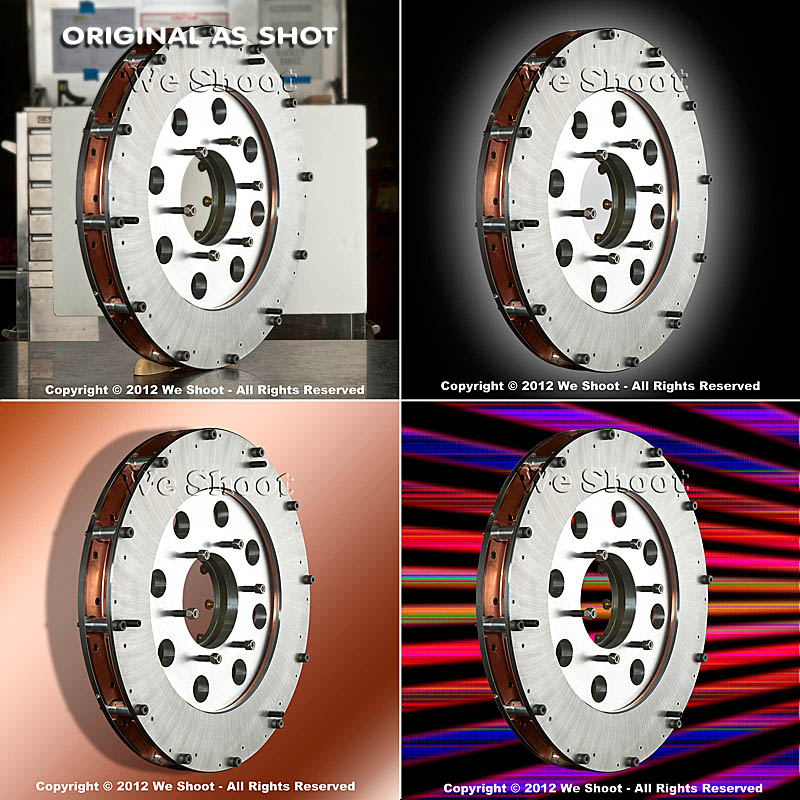
Now, let’s go on to the backgrounds for the images.  Since the area or table on which the items were shot was in a fixed location, the background for each image (as produced by the camera) would have been a toolbox and other parts of the assembly plant.  So we made it so that we and our client could “lift” the item off the background and put it on any other background or even a video.  This is done by means of a “clipping path.”  This is a very labor-intensive process.  It means that I use a Photoshop tool to painstakingly trace out every edge of the product at anywhere from a 100% to a 300% enlargement.  Once I have outlined every hole, edge, and cranny, I “select” the item alone and make a layer of it to put on other backgrounds.  I include this clipping path with the image, so the client is able to do the same.  Now, you may ask why I do so much work, as some of the editing programs have become pretty sophisticated and make an easier selection with other, faster tools.  Well, the answer is this:  I have used these editing tools, and sometimes there are errors in the program choosing what is part of the item and what is not.  It may not be noticeable on a small jpeg on a website, but it will stick out like a sore thumb on a 30X40 enlargement at a trade show.  That is what separates a pro from an amateur.  Below are an original view of one of the products, and a few different backgrounds that I feel work well.  Each background below was created in Photoshop, but other backgrounds could be used, as well.  Remember that whichever one a client chooses, I include the clipping path so they can put it against another background if that is their need.

As you can see, the product image looks at home with any of the backgrounds.  Keep this in mind as you plan your next shoot.

– Gary Silverstein

Tags: camera, commercial photographer, commercial photography, http://weshoot.com, Marketing, photographer, photography, Photoshop, professional, reflections, video
Posted in How To, Learning, Tips | Comments Off on The Difference A Background Can Make . . .

Video: Why a clapperboard should be part of your kit bag . . .

Tuesday, July 17th, 2012

Clapperboard


Did you ever watch an old Hollywood movie about making a movie?  At the beginning of each scene and take, someone holds up a slate with something like, “Scene 6, Take 164,” on it and audibly says the same thing that is on the slate.  At the top of the slate is the “Clapper,” and usually after the director yells “Action,” the person holding the slate claps it to denote the start of the scene.  Actually, the cameras are already rolling so they can record the slate, and the clap.  In the early days of movies, the slate was used to denote the scenes and takes so, when editing the film, the editor was able to piece together the scenes to make the story flow.  Scene 6 and Scene 3 may have been in one city, and other scenes in another.  As sound came in, the clapper was added to allow synchronization of sound to film.  Since the cameras were noisy beasts, the sound was recorded on a separate device, and the clapping sound was synchronized to the visual of the clapper sticks hitting one another.  They were then paired up, and the clapperboard visuals and sound were edited out in the final version.

Today you may ask why you would want to purchase and use this contraption since the audio and video are synchronized by the camera and in lockstep, unless intentionally unlinked in the video editing software.  The answer is that the slate is still needed for real video editing, and the clapper is very handy for synching multiple cameras and the sound with different angles of the same scene.  Almost everybody is bothered when the mouth movement doesn’t synch with the sound.

The truth is that anyone today can shoot a video!  All you need is $100 or more and a heartbeat.  Simple, cheap video cameras (or camcorders) are readily available.  But, professional video cameras can cost well above $60,000.  Why would anyone spend a lot of money for a camera when the images on our TVs looks pretty good from low-priced cameras?  A couple of  reasons are that the image degrades from the cheaper cameras when less than ideal lighting is encountered.  Video noise becomes a factor.  Also, sound input and output is better the more you spend on the camera.

Should you shoot your own video for your business?  Unless you are a budding amateur Spielberg, probably not!  While pushing the record button is easy, buying quality software like Adobe Premiere Pro and After Effects is expensive and learning how to use it can be daunting.

Using lighting can add quality to your video, and there is a whole science to it.

Do you have lights?  Do you have pro software to edit your video?  Are you proficient in video editing?  Do you have a camcorder of sufficient quality to overcome video and audio noise?  These are questions you should ask yourself before trying to promote your business in a video.

In making a video, my partner and I meet with our client to map out the story before even going near a camera.  Videos take planning.  Several days of shooting stills and video can go into a short promotional video.  Way more time is spent editing it.

Now, back to the clapperboard.  The clapperboard we employ (see image above) allows for a tremendous time savings when we’re editing video.

Below, take a look at one of the latest videos we did for a music composer.  You will notice that even though we recorded him from two different angles with two cameras, his mouth is in synch in the side view and the front view.  The guitar-playing scene was also shot with two cameras.  This two-camera setup is included at no extra charge.  It adds a dynamic not found in most amateur endeavors, and this professional look much more successfully illustrates the professionalism of your business.  Don’t put out a substandard video.  It could do more harm than good.

-Gary Silverstein

Tags: audio, clapper, clapperboard, http://weshoot.com, sound, two-camera, video, video production, videography, visual, we shoot, weshoot.com
Posted in How To, Learning, Tips | Comments Off on Video: Why a clapperboard should be part of your kit bag . . .

<< Previous Next >>

  • Categories

    • How To (21)
    • Information (548)
    • Learning (30)
    • Lighting (179)
    • Marketing (291)
    • Photographs, Images (545)
    • Tips (38)
    • Uncategorized (2)
    • video (13)
  • Archives

    • September 2025
    • June 2025
    • May 2025
    • April 2025
    • January 2025
    • December 2024
    • November 2024
    • September 2024
    • August 2024
    • July 2024
    • June 2024
    • May 2024
    • April 2024
    • March 2024
    • February 2024
    • December 2023
    • November 2023
    • October 2023
    • September 2023
    • August 2023
    • July 2023
    • May 2023
    • February 2023
    • January 2023
    • October 2022
    • September 2022
    • August 2022
    • July 2022
    • March 2022
    • February 2022
    • January 2022
    • December 2021
    • July 2021
    • June 2021
    • May 2021
    • April 2021
    • March 2021
    • February 2021
    • January 2021
    • December 2020
    • November 2020
    • October 2020
    • September 2020
    • August 2020
    • July 2020
    • June 2020
    • May 2020
    • April 2020
    • March 2020
    • February 2020
    • January 2020
    • December 2019
    • November 2019
    • October 2019
    • September 2019
    • August 2019
    • July 2019
    • June 2019
    • May 2019
    • April 2019
    • March 2019
    • February 2019
    • January 2019
    • December 2018
    • November 2018
    • October 2018
    • September 2018
    • August 2018
    • July 2018
    • June 2018
    • May 2018
    • April 2018
    • March 2018
    • February 2018
    • January 2018
    • December 2017
    • November 2017
    • October 2017
    • September 2017
    • August 2017
    • July 2017
    • June 2017
    • May 2017
    • April 2017
    • March 2017
    • February 2017
    • January 2017
    • December 2016
    • November 2016
    • October 2016
    • September 2016
    • August 2016
    • July 2016
    • June 2016
    • May 2016
    • April 2016
    • March 2016
    • February 2016
    • January 2016
    • December 2015
    • November 2015
    • October 2015
    • September 2015
    • August 2015
    • July 2015
    • June 2015
    • May 2015
    • July 2014
    • June 2014
    • May 2014
    • September 2013
    • June 2013
    • March 2013
    • February 2013
    • January 2013
    • December 2012
    • October 2012
    • July 2012
    • June 2012
    • May 2012
    • March 2012
    • February 2012
    • December 2011
    • September 2011
    • August 2011
    • July 2011
    • March 2011
    • December 2010
    • October 2010
    • September 2010
    • July 2010
    • June 2010
  • Meta

    • Log in
    • Entries RSS
    • Comments RSS
    • WordPress.org

Copyright © 2025 - weshoot.com | Entries (RSS) | Comments (RSS)

WordPress theme designed by web design